

How to install Windows Server 2022
Search for a command to run...
No comments yet. Be the first to comment.
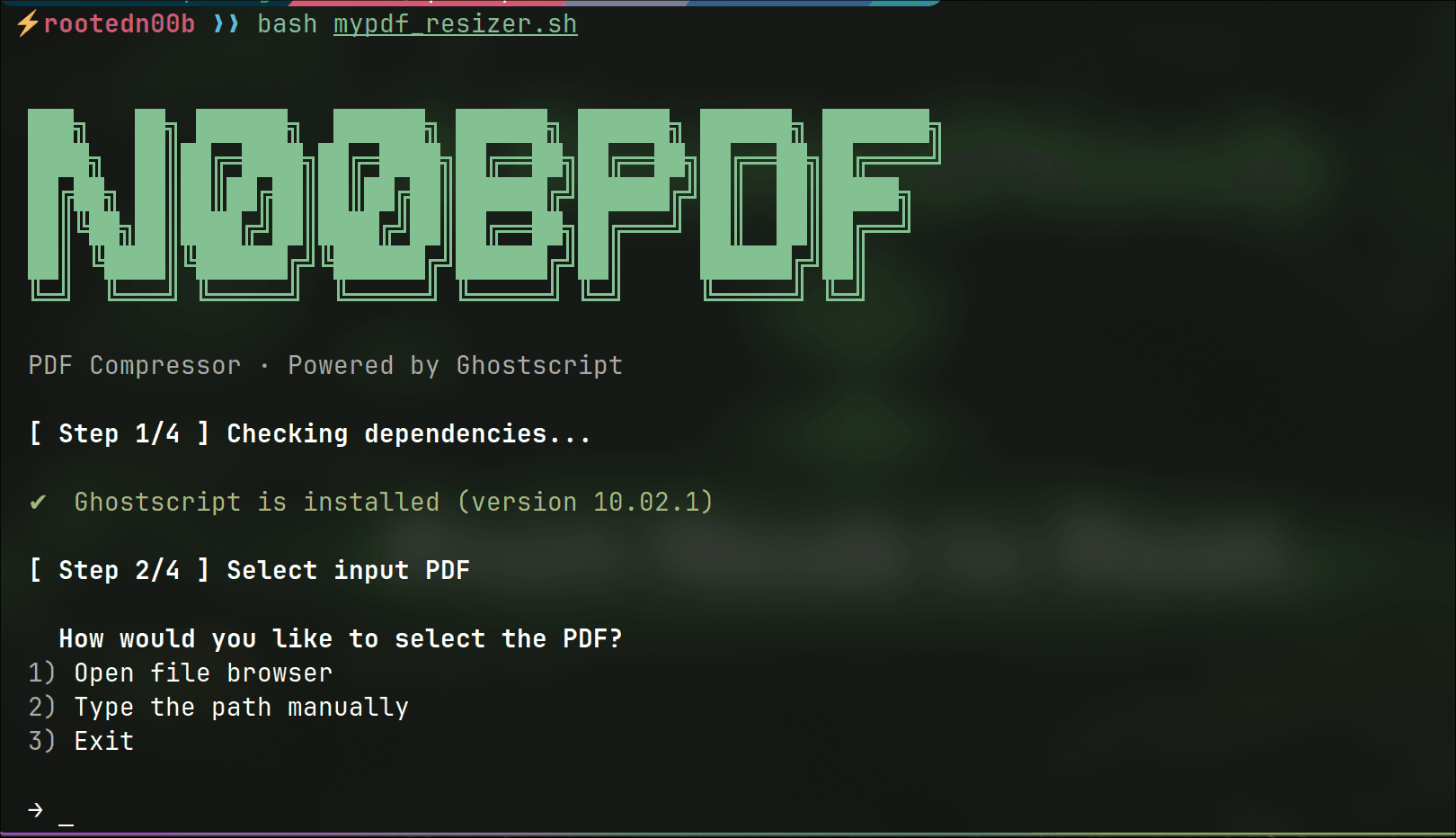
If you've ever tried to email a PDF only to get bounced back with a "file too large" error, you know the frustration. Online PDF compressors exist, but most of them upload your files to someone else's
Core Skills for IT Technicians, Network Engineers, Defenders & Pentesters Introduction Every system tells a story.Not in logs.Not in dashboards.But on the wire. Every login, every file transfer, every scan, every misconfiguration — legitimate or mal...

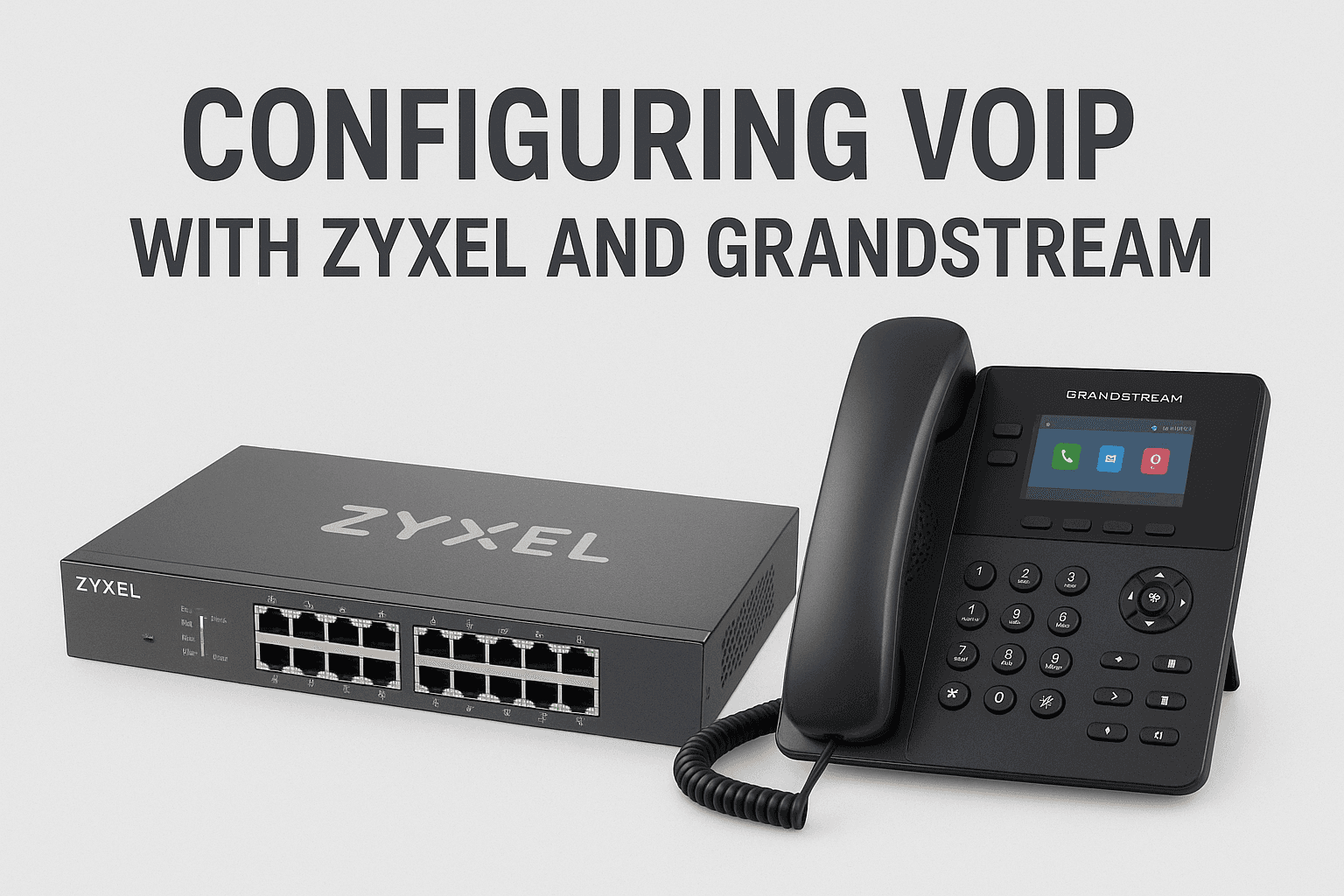
🧩 How to Configure VoIP on a Zyxel Switch with Grandstream Phones Using a Voice VLAN In today’s networks, Voice over IP (VoIP) has become a core communication service for both businesses and labs. To ensure call quality and reduce network interferen...
A Quick Thank You Before diving in, a huge thanks to the offensive security community — from the creators of tools and labs to everyone sharing knowledge daily. Without this spirit of collaboration, many of us wouldn’t have learned how deep and fasci...

Imagine popping open a fresh, fully-configured pentest environment in seconds — with every tool you need, zero dependency hell, and the confidence that your host stays clean. That’s the promise Exegol delivers: not another clunky distro to install an...
Windows Server 2022 is Microsoft server operating system, designed for stability, performance, and modern security. Whether you’re setting it up for a homelab, enterprise environment, or training, understanding how to install and configure it is an essential IT skill.
In this article, we’ll go through the key concepts you need to know before installing Windows Server 2022, and then outline the process. The detailed step-by-step technical guide will be added later.
Windows Server 2022 comes with improvements that make it stand out from previous versions:
Enhanced Security – Secure-core server, TLS 1.3 by default, and better encryption.
Hybrid Capabilities with Azure – Integration for cloud-connected environments.
Modern Application Platform – Support for containers and updated networking.
Improved Performance & Scalability – Built for both small labs and large data centers.
Before starting, make sure you meet the system requirements:
Processor: 1.4 GHz 64-bit processor or faster
RAM: Minimum 2 GB (Desktop Experience requires more at least 4GB)
Disk Space: At least 32 GB (recommend 50 GB+)
Network: Gigabit Ethernet adapter
Installation Media: ISO file or bootable USB/DVD
When installing Windows Server 2022, you’ll usually choose between two main editions:
Standard Edition – For basic server roles and small to medium environments.
Datacenter Edition – For larger environments with virtualization and advanced features.
Insert your Media (USB - CD/DVD)
boot your machine (Physique or VM) on the installation media
on the first screen choos your install language, time and keyboard, then click NEXT

Click INSTALL NOW
In the below screen that is where you choose which windows server type you wish to install, for now let’s choose Desktop Evaluation (Desktop Experience)

In the next screen accept the License Terms and click NEXT
Chose custom to make sure you choose the right disk

Select your disk and click NEXT

If you are using virtualization software make sure after installation before server boot again you change the Boot priority so you have have your DISK #1
After the installation setup your administrator password and your server is ready to launch.

To Login press CTRL + ALT + DELETE

After the installation, you’ll want to configure essential settings:
Rename the Server – Give it a meaningful name.
Set a Static IP Address – Ensures consistency in your network.
Join a Domain (if needed) – Integrate into Active Directory.
Enable Windows Updates – Keep the server secure.
Install Server Roles & Features – Depending on your use case (DNS, AD DS, etc.).
Installing Windows Server 2022 is a foundational skill for any IT professional or homelab builder. Once you get comfortable with the process, you’ll be ready to explore advanced configurations such as domain controllers, Hyper-V virtualization, and Active Directory management.
✨ Pro Tip: Document your installation steps and configurations. Clear notes and screenshots will help you later when troubleshooting or replicating setups.